 sayzly
Help
Quick answers. Still stuck? Write to hello@sayzly.com and a real person replies.
Install
- Open the download page (the link is also in your purchase email). The big button picks the right version for your computer; the arrow next to it lists the others.
- Mac: open the downloaded file and drag Sayzly into Applications, then open it from there. Windows: run the downloaded installer.
- Sayzly walks you through the rest in about a minute.
Sayzly needs macOS 10.15 or newer, or Windows 10 or 11 (64-bit). One license works on 2 computers, Mac or Windows.
Writing in Google Docs? See how to voice type in Google Docs (and in every other app).
macOS says it can't open Sayzly
Sayzly is signed and checked by Apple, so this should not happen. If macOS still blocks it:
- Open System Settings › Privacy & Security.
- Scroll down to the message about Sayzly and click Open Anyway.
- Enter your Mac password, then click Open.
Still blocked? Write to us with a screenshot and we'll sort it out.
Windows says “Windows protected your PC”
Sayzly for Windows isn't signed with a Microsoft certificate yet, so Windows shows this warning for new apps. It's safe to continue:
- In the blue window, click More info.
- Click Run anyway.
- Follow the installer. Sayzly opens when it's done.
Your antivirus blocks it? Write to us and we'll help.
Activate
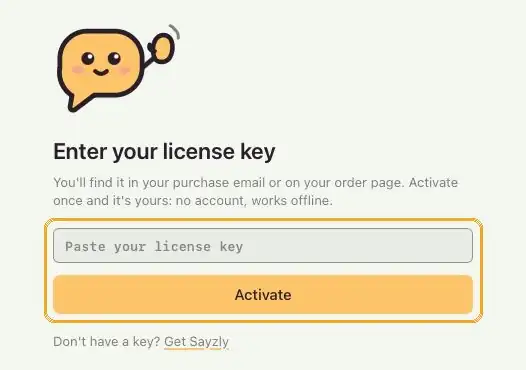
One click: install Sayzly first, then click Activate Sayzly on the download page you reached after paying. Sayzly opens and activates by itself.
By hand: copy the license key from your purchase email, paste it into Sayzly and click Activate. Your key works on 2 computers.
No email after 10 minutes? Check spam, then write to us from the email you paid with.
Change the shortcut
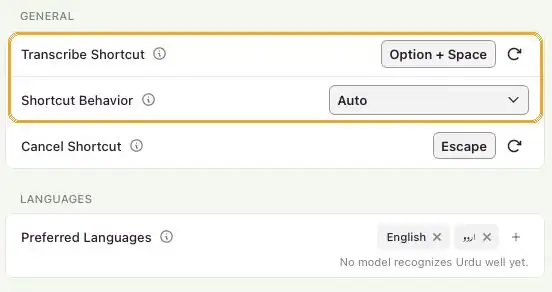
The shortcut is ⌥ Option + Space on a Mac and Ctrl + Space on Windows. Hold it, speak, release. To change it, open Sayzly's Settings › General › Shortcut, click the shortcut and press the keys you want. You can also switch from "hold" to "tap to start, tap to stop" there.
Choose a speech model
Sayzly listens with a speech model that runs on your computer. Sayzly downloads the right speech model for your language during setup. For other languages, open Settings › Models, choose your languages, and pick the model marked Recommended. It downloads once, then works offline.
Bigger models make fewer mistakes but take a moment longer; the list shows both for your computer.
Microphone & Accessibility
Mac: Sayzly needs two permissions: Microphone (to hear you) and Accessibility (to type into other apps). Sayzly asks for both on first start. If something stopped working, open System Settings › Privacy & Security, then Microphone and Accessibility, and make sure Sayzly is switched on. If it's on but still doesn't work, switch it off and on again, then restart Sayzly.
Windows: open Settings › Privacy & security › Microphone and make sure microphone access, and access for desktop apps, are on.
New computer
Your key works on 2 computers. Moving to a new one? In Sayzly on the old computer, open Settings › About and click Deactivate this device. Then activate on the new one. The old computer is gone or broken? Write to us and we'll free up the slot.
All features
Everything Sayzly can do, most useful first. Open the settings from the Sayzly icon in your menu bar (Mac) or system tray (Windows) › Settings.
Offline runs only on your computer. Uses internet sends something over the internet; we say exactly what.
Dictate in any app Offline
Click where you want to type, hold the shortcut, speak, let go. Your words appear there: email, docs, chat, notes, code editors, AI chats.
Where: Settings › General › Transcribe Shortcut. On from the start: ⌥ Option + Space on a Mac, Ctrl + Space on Windows. Click the shortcut to change it.
Shortcut Behavior: Auto (default: hold to talk, or tap once to start and tap again to stop), Hold (only while you hold) or Toggle (tap to start, tap to stop). Cancel Shortcut (Esc) throws away the recording you're making. For everyone.
Speech models Uses internet once
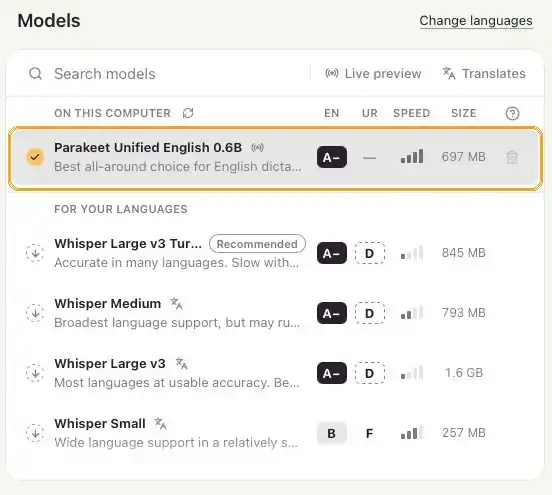
The speech model turns your voice into text on your computer. Pick one, it downloads once from Sayzly's model library, then works offline forever. Each model shows a grade for each of your languages, its speed and its size. Live preview marks models that can show your words while you speak; Translates marks models that can turn other languages into English.
Where: Settings › Models. Click a model to download and use it; the bin icon deletes it. You can also switch models from the bottom-left corner of the settings window. For people who speak more than one language, or want more accuracy or more speed.
Your languages Offline
Tell Sayzly which languages you speak, and it recommends the best models for them. Sayzly's models cover about 100 languages. If you speak Chinese, a Chinese Script choice appears too (Simplified, or Traditional as in Taiwan or Hong Kong).
Where: Settings › General › Preferred Languages (also asked when you first open Sayzly). Some models also get their own settings card on the General page, with a Language choice (Auto or one language) and Translate to English (off by default; only for models marked Translates).
History and recordings Offline
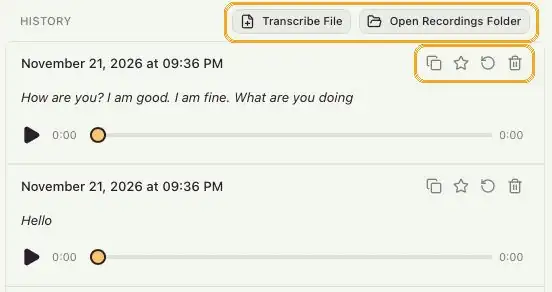
Your latest dictations, stored only on your computer. Copy one again, star it to keep it, play the recording, re-transcribe it (for example with a better model) or delete it.
Where: Settings › History. Keeps the last 5 by default; change it in Settings › Advanced › History Limit and Auto-Delete Recordings. Open Recordings Folder shows the audio files. Handy if you lost text or want to fix a word.
Transcribe audio and video files Offline
Turn a voice memo, interview, lecture or video into text. Works with mp3, m4a, aac, wav, flac, ogg, opus, aiff, mp4, m4v, mov and webm.
Where: Settings › History › Transcribe File, or drag the file onto the Sayzly window. The text shows up in History. For students, journalists, podcasters, anyone with recordings.
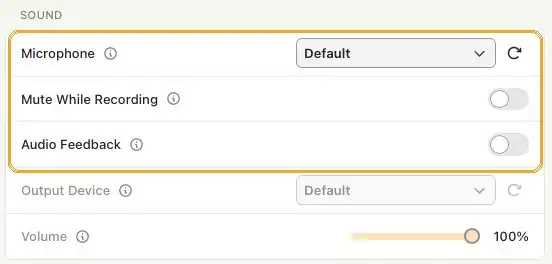
Microphone and sounds Offline
Choose the microphone (and input channel, for audio interfaces). Mute While Recording silences your computer while you talk (off by default). Audio Feedback plays a short sound when recording starts and stops (off by default), with its own output device and volume.
Where: Settings › General › Sound.
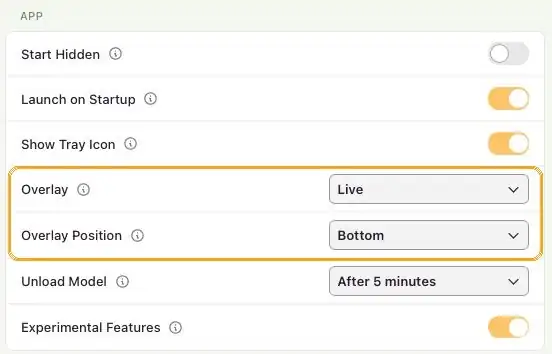
Recording overlay Offline
A small bubble on screen shows that Sayzly is listening. Live shows your words in real time as you speak (only with models marked Live preview), Minimal shows a small pill, None hides it. You can put it at the top or bottom of the screen.
Where: Settings › Advanced › App › Overlay and Overlay Position.
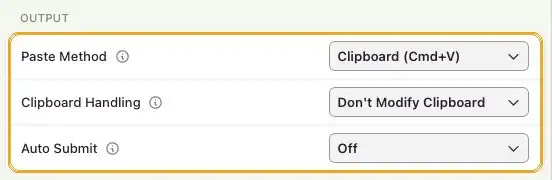
How the text is inserted Offline
- Paste Method: Clipboard (pastes with Cmd/Ctrl + V), Direct (types the text key by key), None (only saves it in History). Extra options for special apps and terminals.
- Clipboard Handling: Don't Modify Clipboard keeps what you had copied before; Copy to Clipboard leaves the dictated text there too.
- Auto Submit: presses Enter (or Cmd/Ctrl + Enter) after the text, so a chat message sends by itself. Off by default.
- Append Trailing Space: adds a space after each dictation. Off by default.
Where: Settings › Advanced › Output, and Transcription for the trailing space.
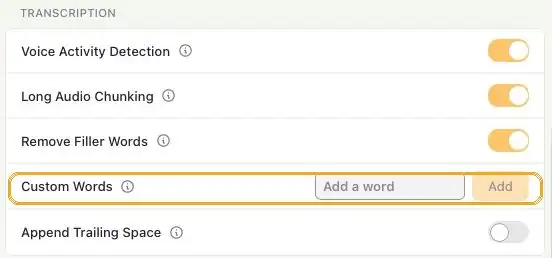
Cleaner text Offline
- Remove Filler Words: drops "um", "uh" and similar. On by default.
- Custom Words: teach Sayzly names, brands and special terms so supported models spell them right. Type a word, click Add.
- Voice Activity Detection: cuts out silence. On by default.
- Long Audio Chunking: splits long recordings at pauses, which usually makes them faster and more accurate. On by default.
Where: Settings › Advanced › Transcription.
App behaviour Offline
- Launch on Startup: starts Sayzly when you log in (off by default, or on if you ticked it during setup).
- Start Hidden: starts without opening the window. Off by default.
- Show Tray Icon: the Sayzly icon in the menu bar or tray. On by default. Its menu can copy your last dictation, switch model or language, free memory and check for updates.
- Unload Model: frees memory when you haven't dictated for a while (default: after 5 minutes). The next dictation then takes a moment longer to start.
Where: Settings › Advanced › App.
Look, language and license Offline
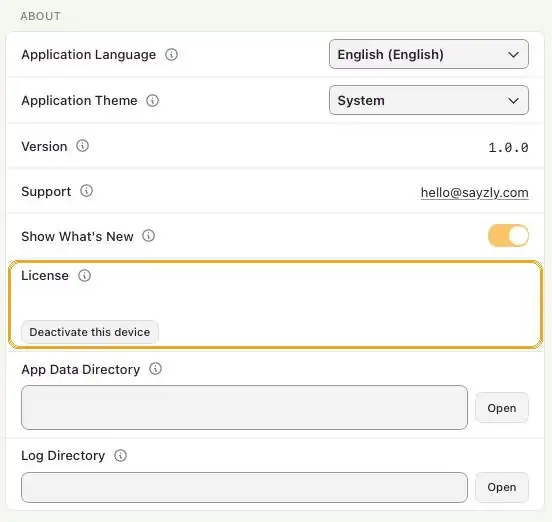
Application Language (the language of Sayzly's menus), Application Theme (System, Light or Dark), Show What's New after updates, your License with Deactivate this device (to move Sayzly to another computer), and the folders where Sayzly keeps its data and logs.
Where: Settings › About.
What uses the internet
- Activation Uses internet: your key is checked once when you activate, then about once a day when you're online. Sayzly keeps working offline.
- Model downloads Uses internet: once per model.
- Update check Uses internet: Sayzly asks sayzly.com if there's a newer version.
- Post Processing Uses internet: only if you turn it on (below).
Your voice and your dictated text never leave your computer for anything else.
Experimental features
Still in development, so they may change or misbehave. Turn on Settings › Advanced › Experimental Features (off by default) and an Experimental group appears at the bottom of the Advanced page.
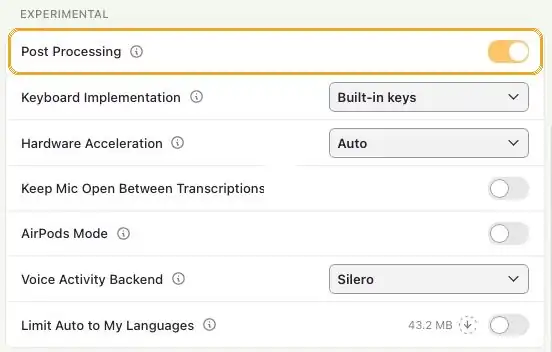
Post Processing (AI rewrite) Uses internet
Optional and off by default. When it's on, Sayzly sends the text of your dictation (not the audio) to an AI service you choose, using your own API key, and pastes back the improved version, for example with fixed grammar or as a tidy email. That service sees the text and handles it under its own privacy terms; you pay it directly, Sayzly doesn't.
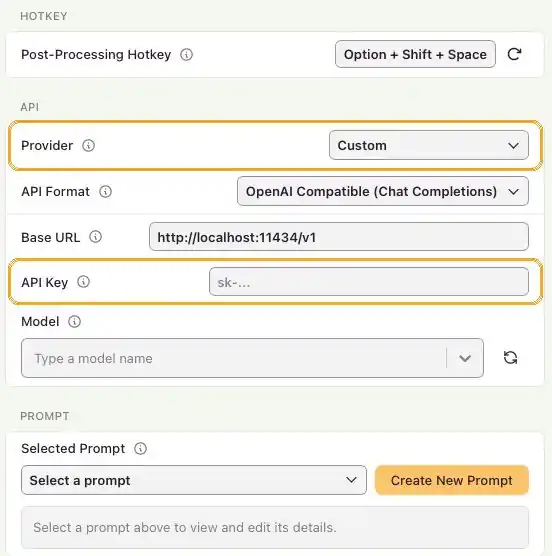
Providers: OpenAI, Anthropic, Groq, Cerebras, OpenRouter, Z.AI, AWS Bedrock or any compatible Custom address. Two ways keep the text on your computer: Apple Intelligence (Apple silicon Mac with macOS 26 or later and Apple Intelligence turned on), or a Custom AI server you run on your own computer.
Where: turn on Experimental › Post Processing; a Post Process page appears in the sidebar. Choose the provider, paste your API key, pick a model and a prompt (write your own; ${output} stands for your dictated text). Use it with its own shortcut: ⌥ Option + Shift + Space on a Mac, Ctrl + Shift + Space on Windows. For people who want polished text and are fine with an AI service reading it.
Other experimental options Offline
- Hardware Acceleration: Auto uses your graphics chip when it can, otherwise the processor. Pick CPU if dictation misbehaves.
- Keep Mic Open Between Transcriptions: keeps the microphone ready for 30 seconds after each dictation, so the next one starts faster. Can lower Bluetooth headset sound quality meanwhile.
- AirPods Mode (Mac): switches your AirPods to the Mac for dictation when your iPhone is playing audio. Without it, recordings can come back silent.
- Voice Activity Backend: the silence detector. Silero (default) or Earshot (newer); switch back to Silero if words get cut off.
- Limit Auto to My Languages: when the language is set to Auto, Sayzly only picks from your languages. Downloads a small 43 MB language detector once Uses internet once.
- Keyboard Implementation: how Sayzly listens for your shortcut. Only change it if the shortcut stops working.
Refund
Not happy? Request a refund within 14 days of buying. Enter the email you paid with, click the link we send you, done. Details: Refund policy.
Contact
hello@sayzly.com. We usually reply within a day.